Help
Support
How to get started, the questions we get most, and a way to reach a human.
Getting started
From nothing to mirroring
-
1
Run the receiver
Download it from the receiver page and start it. On Windows, allow it on your private network when asked.
-
2
Open Nearscreen on your iPhone
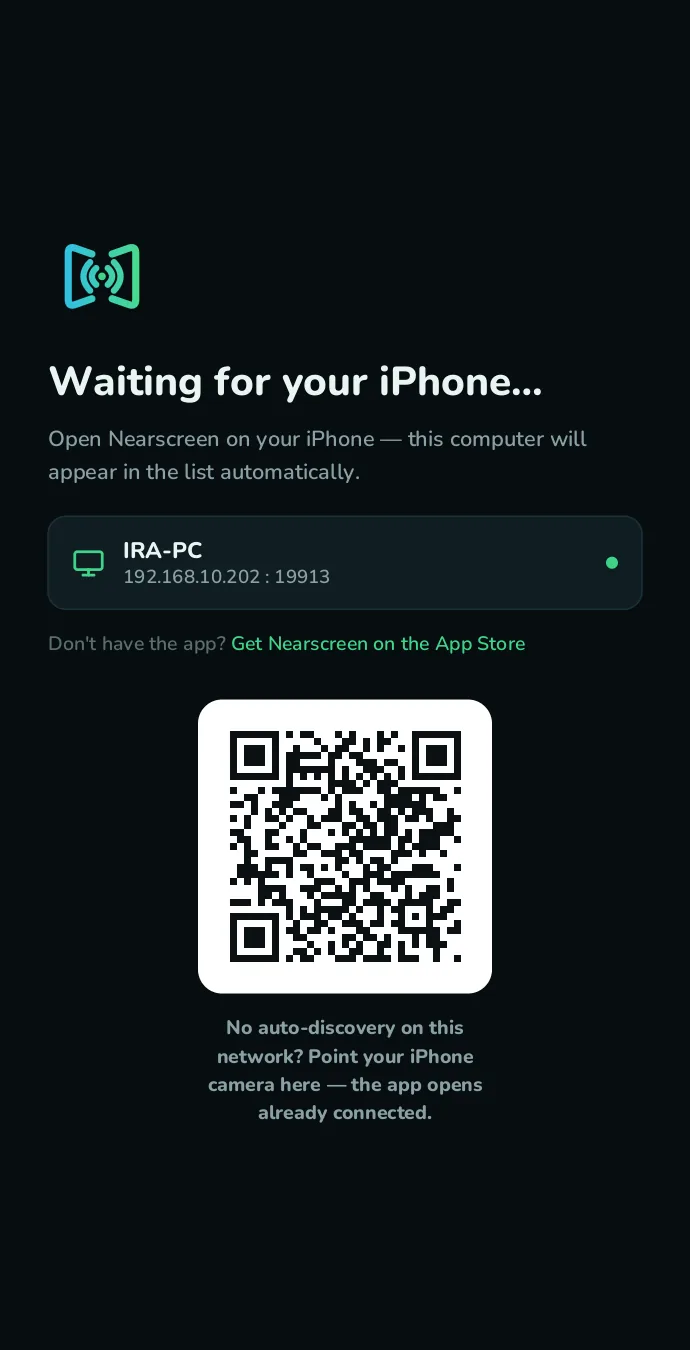
Get it free from the App Store, then open it: your computer shows up by name. The first time, the receiver asks you to accept the phone — approve it there and it is remembered.
-
3
Start Broadcast
Tap the button, choose “Start Broadcast”, and your screen appears in the receiver window. To stop: tap the red status indicator, or just lock your phone.
FAQ
Frequently asked
My computer doesn’t show up
Check three things: both devices on the same Wi-Fi network, the receiver actually running, and the receiver allowed through your firewall — on Windows that prompt appears the first time you run it, and it needs Private networks.
Some networks — offices, dorms, guest Wi-Fi — block device discovery entirely. There, point your iPhone camera at the QR code in the receiver window: the app opens already connected.
Windows warns about an unknown publisher
The Windows build is not code-signed yet, so SmartScreen may stop the first launch: choose More info → Run anyway. The source is on GitHub if you would rather build it yourself.
On macOS there is nothing to work around — the Mac build is signed with our Developer ID and notarised by Apple, so it opens with a normal double click. macOS still asks once for permission to find devices on your local network; that one is required, or the phone cannot reach the receiver.
Does it work without internet?
Yes. Only your local network is used — the phone streams straight to the receiver. No internet connection is needed at any point.
Is my screen private?
Your video is streamed only to a receiver on your own network and never reaches us or any third party. No accounts, no analytics, no tracking — and the receiver is open source, so you can check for yourself. See our Privacy Policy.
Still stuck?
Write to support@nearscreen.app. Tell us your iPhone model, your iOS version, and what your computer runs — that is usually all we need.